

Free online booking and scheduling for solo and small service businesses
Public booking pages attract automated spam and fake requests. 1MinuteBooking screens every request with a captcha, a check on each visitor's connection, your own country and word filters, and client blocking. Anything caught goes to a Spam folder, where it never holds a time slot and the sender isn't notified.
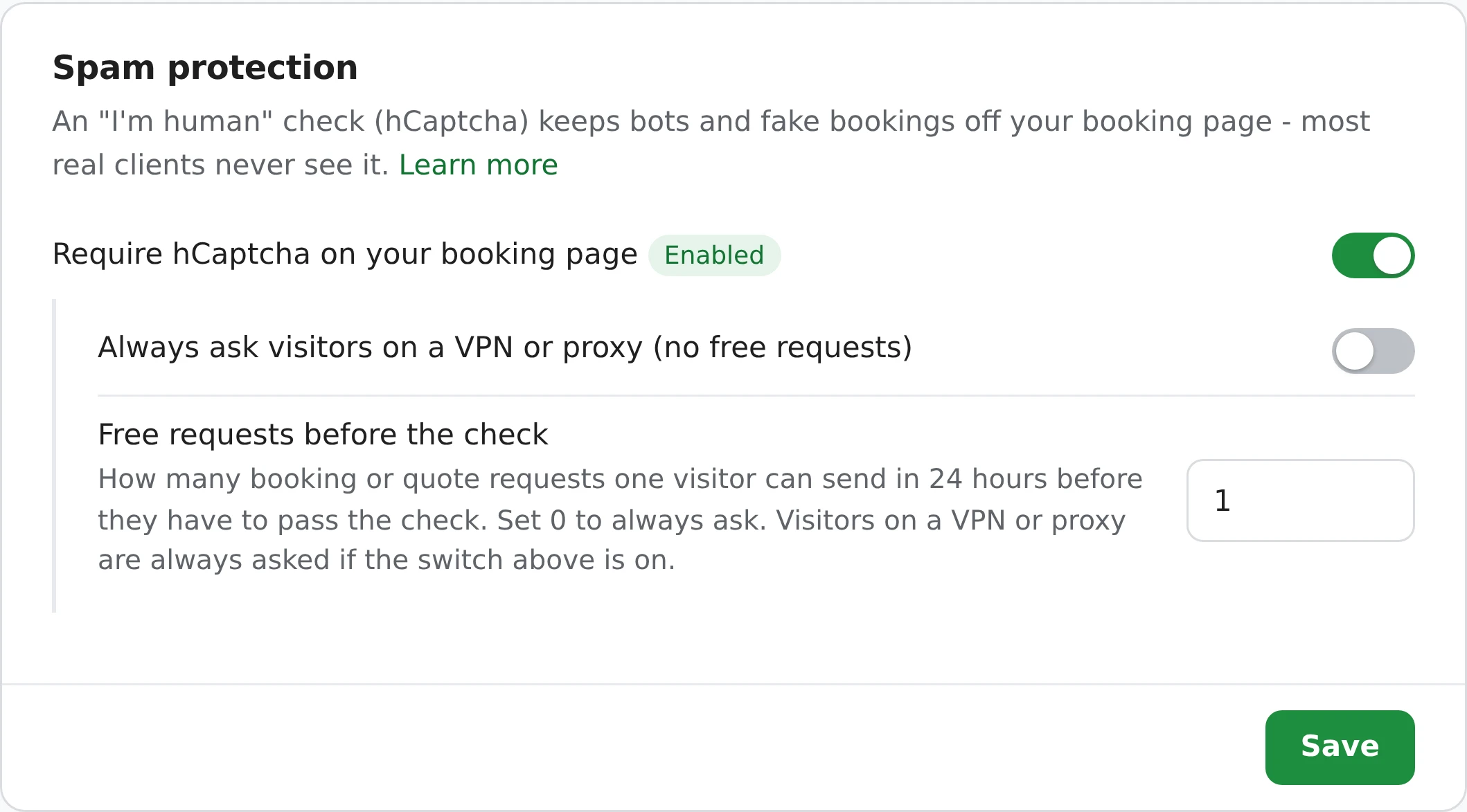
On by default, on every plan. Each one can be adjusted in Settings > Spam protection.
Caught requests aren't rejected. They're filed in a Spam folder, separate from your bookings.
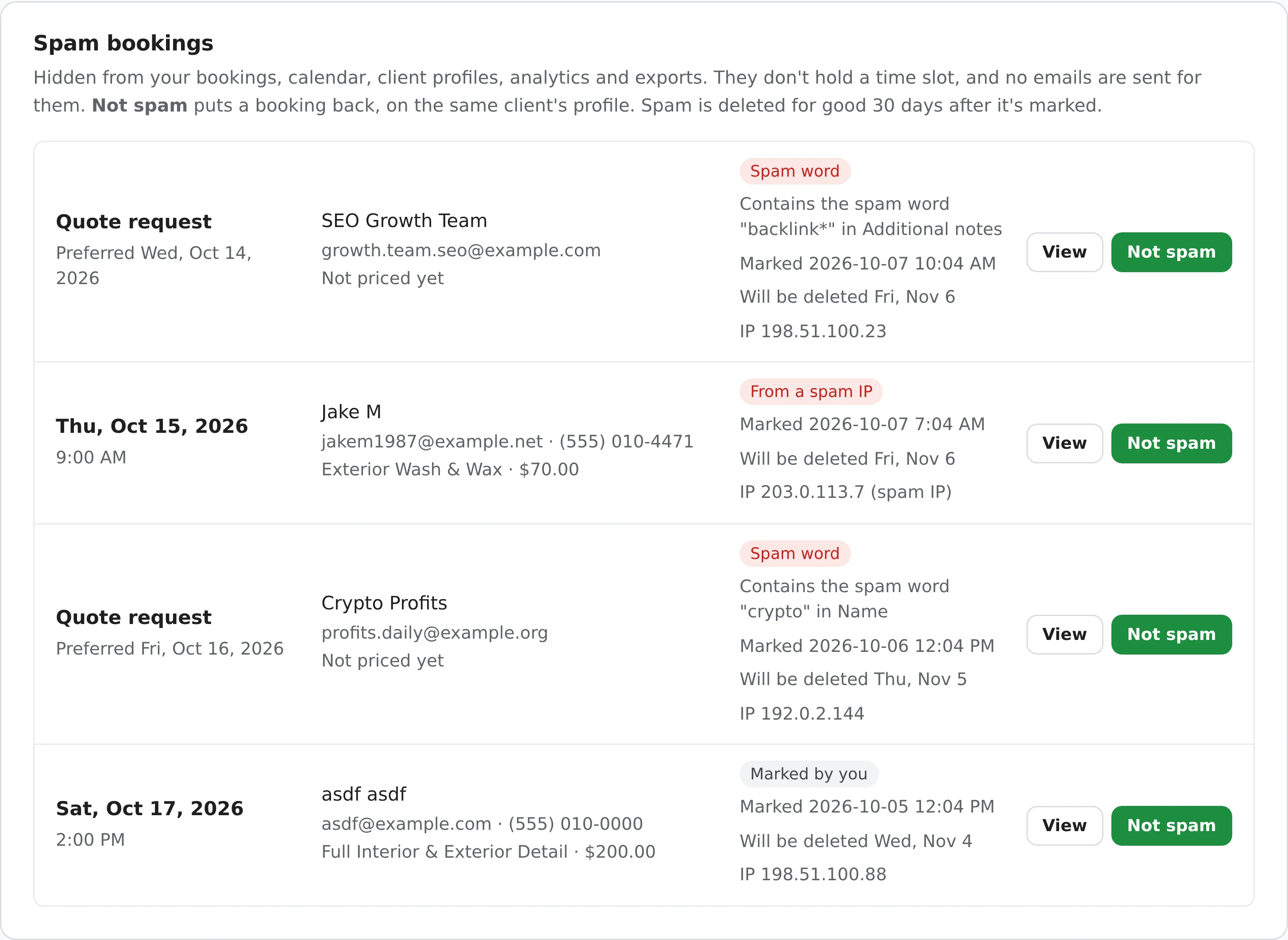
A request doesn't hold its time slot until you confirm it (unless you turn on Pending appointments block availability), so a fake request that gets through can't keep real clients from booking. Clients also aren't emailed when they send a request - only when you confirm it, and never at a disposable address - so your booking page can't be used to send email to third parties.
Settings > Spam protection > Automatic spam filters, plus blocking from any booking or client. The lists start empty.
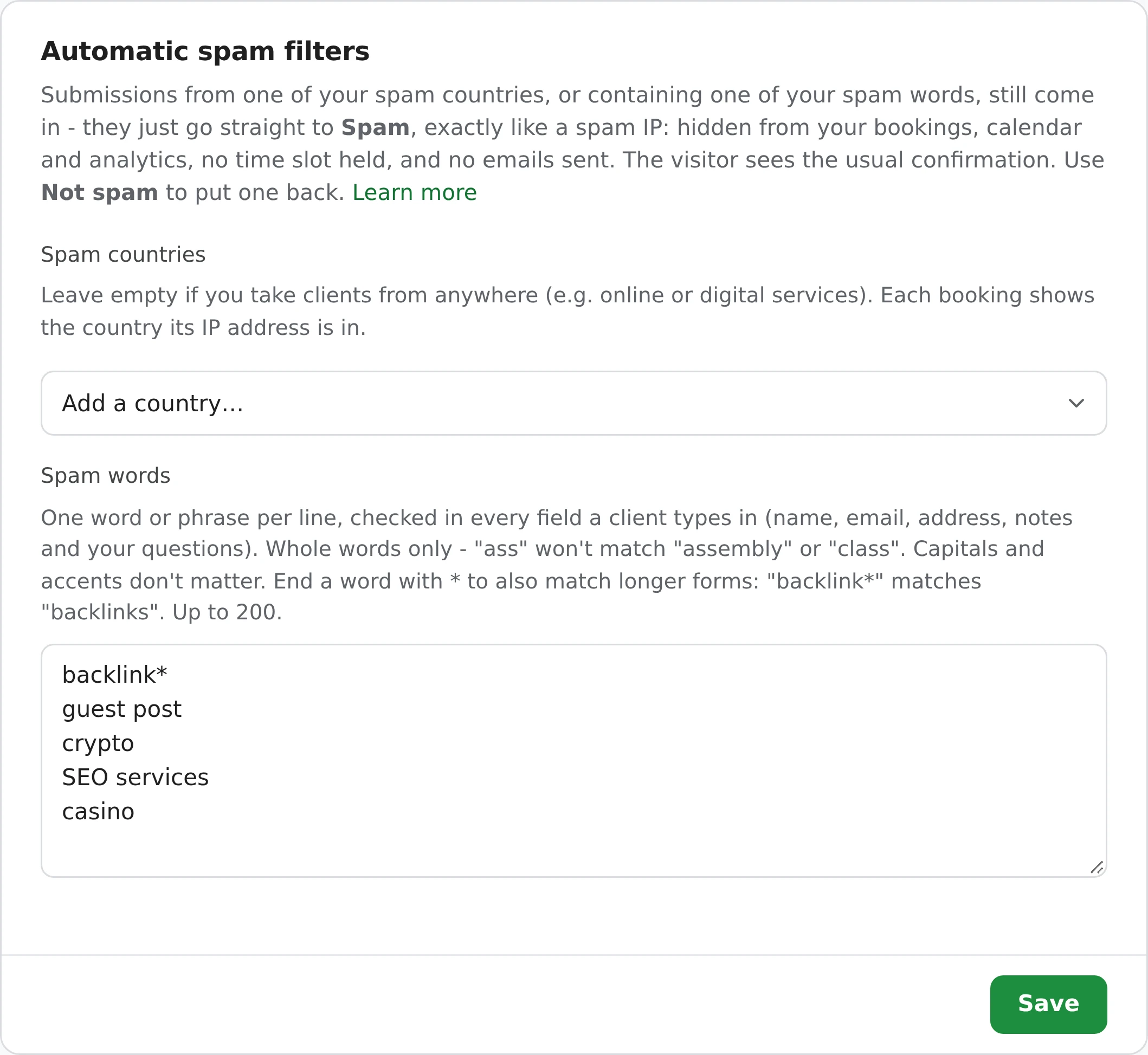
One word or phrase per line, such as "backlink*", "guest post" or "crypto". Every field a client fills in is checked, matching whole words only, so "post" never matches "postcard". End a word with * to match longer forms, and look-alike characters from other alphabets (a Cyrillic "а" in place of an "a") are matched too.
Choose the countries you don't serve. Each booking shows the country its internet connection is in. Because someone travelling or using a VPN can appear to be elsewhere, matching requests go to Spam rather than being rejected. Leave the list empty if you work with clients anywhere.
An IP address identifies the internet connection a request came from. Mark one as spam from any booking, and every future request from it goes straight to Spam. Earlier requests from it that you haven't acted on are moved there too.
Open a client's profile and click Block Client to block their email address and phone number - including someone who hasn't booked yet, by adding them under Clients first. Their requests are discarded: they see the standard confirmation, and you aren't notified.
With Stripe Payments on, every booking is backed by a valid card, and higher-risk payments get an extra check.
The trade-off: some clients prefer not to enter a card just to request a booking. Start with the free checks, and add a deposit if fake bookings or no-shows continue.
Here's what each one lists in its own help pages, as of October 2026.
Calendly lets you block a person from a meeting they've booked, on every plan. Email verification, single-use links and blocking email domains are on select paid plans, and you can report abuse to Calendly.
Square Appointments lets you block a customer from online booking on its Plus and Premium plans. The blocked customer sees an error message when they try to book.
1MinuteBooking includes every check on this page on the free plan: the captcha, the connection check, spam countries and words, spam IPs and blocked clients. Caught requests go to a Spam folder without notifying the sender, so they never reach your calendar.
Features change - check Calendly's and Square's current help pages before you decide. Switching? See the Calendly alternative and Square Appointments comparison.
Every check on this page is on the free plan, with no per-booking fees and nothing to install.
The first request from each visitor in 24 hours goes straight through. Only repeat senders - and VPN visitors, if you choose - are asked.
Unverified and filtered requests still arrive, so a legitimate client on a VPN or abroad isn't lost. Review your Spam folder from time to time.
Quote requests and the booking widget on your own website get exactly the same checks.
Photos sent with a quote request must be real photos. They're resized, and location and camera details are removed.
The captcha, the VPN check and your filters are each a setting in Settings > Spam protection.
Keep the captcha on (it's on by default), add the words that appear in unwanted requests to your spam words, and mark a repeat sender's IP address as spam. Matching requests from your booking page or booking form go to your Spam folder, not your calendar. If fake bookings continue, require a small card deposit.
Most come from automated bots that submit every form they find, usually advertising SEO, backlinks or crypto. Others are sent with false details, or under a real client's name. Any public booking link is found eventually, which is why these checks are on by default.
Usually not. Each visitor's first request in 24 hours goes straight through. The captcha - hCaptcha, which works like Google's reCAPTCHA - only appears after that, or right away for visitors on a VPN if you turn that on.
Yes. Open their client profile and click Block Client. Requests with their email address or phone number are discarded: they see the standard confirmation, and you aren't notified. To block someone who has never booked, add them under Clients first.
Yes. Add countries under Spam countries in Settings > Spam protection. Requests from them still come in, but go straight to Spam. Someone travelling or on a VPN can appear to be in another country, which is why they aren't refused outright.
No. Anything in Spam is hidden from your calendar and never holds its time. Pending requests don't hold their time either, unless you turn on Pending appointments block availability.
No. They see the same confirmation message as everyone else, so there's no sign that their requests are being caught.
Mostly, yes. A deposit - even $1 - confirms a valid card is behind every booking, which discourages fake bookings and reduces no-shows. It requires Stripe Payments, and some clients prefer not to enter a card just to request a booking, so start with the free checks.
Calendly's help pages (September 2026) list blocking a person from a meeting they booked, on every plan, and email verification, single-use links and blocking email domains on select paid plans. On 1MinuteBooking every check on this page is on the free plan, and caught requests go to a Spam folder instead of your calendar.
Nothing. Every check on this page is on the free plan. If you take card deposits through Stripe, 1MinuteBooking takes 2% of each card charge, on top of Stripe's fee.
Sign up here and pick your type of business in setup - your page starts set up for it. You can change anything later.